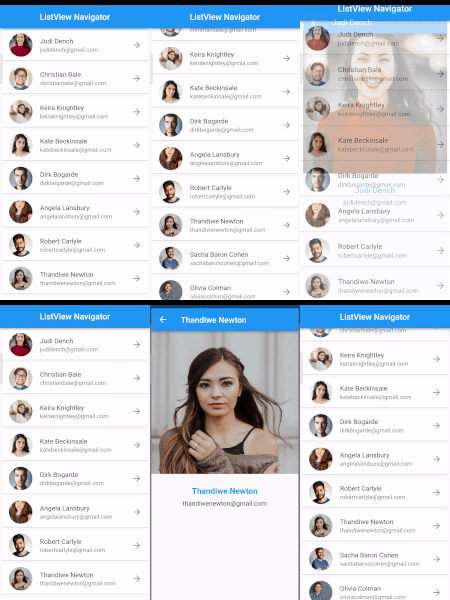
Hi guys I hope you all are doing well and creating something new & attractive. So in this article, we are going to show you the easiest way to create ListView with Navigator in a new and attractive way. In this article, we do not use any third-party package we use the flutter in-build widgets and their properties. First, we understand what is a ListView, in my last article we explain it if you did not read so please read this, what is a ListView?
I think you little bit understand what is ListView, Now we move to the coding part
Step 1: Now create a new project and open your Main.dart file
Open your Main.dart file the implement this code into it. in this code, we implement SystemChrome.setEnabledSystemUIMode() class, which we use to hide the bottom navigation & top navigation bar hide it is not necessary we you don’t like you remove it.
import 'package:flutter/material.dart';
import 'package:flutter/services.dart';
import 'SlidableListView/slidable_listView.dart';


void main() {
  WidgetsFlutterBinding.ensureInitialized();
  SystemChrome.setEnabledSystemUIMode(SystemUiMode.immersiveSticky, overlays:[]).then(
        (_) => runApp(MyApp()),
  );
 //  runApp(MyApp());
}

class MyApp extends StatelessWidget {

  @override
  Widget build(BuildContext context) {

    return new MaterialApp(
        debugShowCheckedModeBanner: false,
        home:  ListViewNavigator,
    );
  }
}
Step 2: create & open ListViewNavigator.dart file
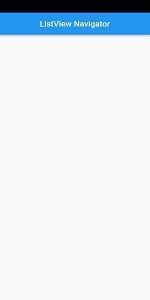
Create and open ListViewNavigator.dart file and implement this simple code which uses a simple Scaffold widget with the title.
import 'package:flutter/material.dart';

class ListViewNavigator extends StatefulWidget {
  const ListViewNavigator({Key? key}) : super(key: key);

  @override
  State<ListViewNavigator> createState() => _ListViewNavigatorState();
}

class _ListViewNavigatorState extends State<ListViewNavigator> {
  @override
  Widget build(BuildContext context) {
    return Scaffold(
      appBar: AppBar(
        title: Text('ListView Navigator'),
        centerTitle: true,
      ),
    );
  }
}
Step 3: Create a model List for user data
We create a model class for static user data you can also fetch the data from the API
class User{
  final String name;
  final String email;
  final String image;

  User(this.name, this.email, this.image);
}

List<User> users = [
    User("Judi Dench", "judidench@gmail.com", "https://images.unsplash.com/photo-1494790108377-be9c29b29330?ixlib=rb-4.0.3&ixid=MnwxMjA3fDB8MHxzZWFyY2h8MXx8dXNlciUyMHByb2ZpbGV8ZW58MHx8MHx8&w=1000&q=80"),
    User("Christian Bale", "christianbale@gmail.com", "https://us.123rf.com/450wm/lacheev/lacheev2109/lacheev210900016/lacheev210900016.jpg?ver=6"),
    User("Keira Knightley", "keiraknightley@gmail.com", "https://us.123rf.com/450wm/deagreez/deagreez2104/deagreez210409586/deagreez210409586.jpg?ver=6"),
    User("Kate Beckinsale", "katebeckinsale@gmail.com", "https://www.rd.com/wp-content/uploads/2017/09/01-shutterstock_476340928-Irina-Bg.jpg?fit=640,427"),
    User("Dirk Bogarde", "dirkbogarde@gmail.com", "https://encrypted-tbn0.gstatic.com/images?q=tbn:ANd9GcSPSX6rnIejKF6jwH56EVGfSiimk09IYi1JAIYmSIf4Z__hXs-jP8RHKlbVc4GhSVyM_Ns&usqp=CAU"),
    User("Angela Lansbury", "angelalansbury@gmail.com", "https://i.pinimg.com/564x/6b/28/21/6b2821072600f08832f4af96e965273b--narnia-brunettes.jpg"),
    User("Robert Carlyle", "robertcarlyle@gmail.com", "https://images.pexels.com/photos/2379005/pexels-photo-2379005.jpeg?cs=srgb&dl=pexels-italo-melo-2379005.jpg&fm=jpg"),
    User("Thandiwe Newton", "thandiwenewton@gmail.com", "https://images.unsplash.com/photo-1502323703385-c3ea9ace787d?ixlib=rb-4.0.3&ixid=MnwxMjA3fDB8MHxwaG90by1yZWxhdGVkfDR8fHxlbnwwfHx8fA%3D%3D&w=1000&q=80"),
    User("Sacha Baron Cohen", "sachabaroncohen@gmail.com", "https://images.pexels.com/photos/2379004/pexels-photo-2379004.jpeg?auto=compress&cs=tinysrgb&dpr=1&w=500"),
    User("Olivia Colman", "oliviacolman@gmail.com", "https://t4.ftcdn.net/jpg/01/15/85/23/360_F_115852367_E6iIYA8OxHDmRhjw7kOq4uYe4t440f14.jpg"),

  ];
Step 4: now implement Listview.builder in ListViewNavigator.dart file
Open your ListViewNavigator.dart file and add Listview.builder widget and implement their properties in it.
import 'package:flutter/material.dart';
import 'package:navigationdrawer/ListViewNavigator/user_page.dart';

class ListViewNavigator extends StatefulWidget {
  const ListViewNavigator({Key? key}) : super(key: key);

  @override
  State<ListViewNavigator> createState() => _ListViewNavigatorState();
}

class _ListViewNavigatorState extends State<ListViewNavigator> {

  List<User> users = [
    User("Judi Dench", "judidench@gmail.com", "https://images.unsplash.com/photo-1494790108377-be9c29b29330?ixlib=rb-4.0.3&ixid=MnwxMjA3fDB8MHxzZWFyY2h8MXx8dXNlciUyMHByb2ZpbGV8ZW58MHx8MHx8&w=1000&q=80"),
    User("Christian Bale", "christianbale@gmail.com", "https://us.123rf.com/450wm/lacheev/lacheev2109/lacheev210900016/lacheev210900016.jpg?ver=6"),
    User("Keira Knightley", "keiraknightley@gmail.com", "https://us.123rf.com/450wm/deagreez/deagreez2104/deagreez210409586/deagreez210409586.jpg?ver=6"),
    User("Kate Beckinsale", "katebeckinsale@gmail.com", "https://www.rd.com/wp-content/uploads/2017/09/01-shutterstock_476340928-Irina-Bg.jpg?fit=640,427"),
    User("Dirk Bogarde", "dirkbogarde@gmail.com", "https://encrypted-tbn0.gstatic.com/images?q=tbn:ANd9GcSPSX6rnIejKF6jwH56EVGfSiimk09IYi1JAIYmSIf4Z__hXs-jP8RHKlbVc4GhSVyM_Ns&usqp=CAU"),
    User("Angela Lansbury", "angelalansbury@gmail.com", "https://i.pinimg.com/564x/6b/28/21/6b2821072600f08832f4af96e965273b--narnia-brunettes.jpg"),
    User("Robert Carlyle", "robertcarlyle@gmail.com", "https://images.pexels.com/photos/2379005/pexels-photo-2379005.jpeg?cs=srgb&dl=pexels-italo-melo-2379005.jpg&fm=jpg"),
    User("Thandiwe Newton", "thandiwenewton@gmail.com", "https://images.unsplash.com/photo-1502323703385-c3ea9ace787d?ixlib=rb-4.0.3&ixid=MnwxMjA3fDB8MHxwaG90by1yZWxhdGVkfDR8fHxlbnwwfHx8fA%3D%3D&w=1000&q=80"),
    User("Sacha Baron Cohen", "sachabaroncohen@gmail.com", "https://images.pexels.com/photos/2379004/pexels-photo-2379004.jpeg?auto=compress&cs=tinysrgb&dpr=1&w=500"),
    User("Olivia Colman", "oliviacolman@gmail.com", "https://t4.ftcdn.net/jpg/01/15/85/23/360_F_115852367_E6iIYA8OxHDmRhjw7kOq4uYe4t440f14.jpg"),

  ];


  @override
  Widget build(BuildContext context) {
    return Scaffold(
      appBar: AppBar(
        title: Text('ListView Navigator'),
        centerTitle: true,
      ),
      body: ListView.builder(
        itemCount: users.length,
        itemBuilder: (context, index) {

          final user = users[index];

          return Card(
            child: ListTile(
              leading: CircleAvatar(
                radius: 30,
                backgroundImage: NetworkImage(user.image),
              ),
              title: Text(user.name),
              subtitle: Text(user.email),
              trailing: Icon(Icons.arrow_forward),
              onTap: (){
                Navigator.push(context, MaterialPageRoute(builder: (context)=>UserPage(user)));
              },
            ),
          );
        }),

    );
  }
}


class User{
  final String name;
  final String email;
  final String image;

  User(this.name, this.email, this.image);
}
Step 5: Create a UserPage.dart file and navigate to
UserPage.dart
import 'package:flutter/material.dart';
import 'listview_navigator.dart';


class UserPage extends StatefulWidget {
  final User user;

  UserPage(this.user);

  @override
  State<UserPage> createState() => _UserPageState();
}

class _UserPageState extends State<UserPage> {
  @override
  Widget build(BuildContext context) {
    return Scaffold(
      appBar: AppBar(
        title: Text(widget.user.name),
      ),
      body: Center(
        child: Column(
          children: [
            Image.network(
              widget.user.image,
              height: 350,
              width: double.infinity,
              fit: BoxFit.cover,
            ),
            SizedBox(
              height: 30,
            ),
            Text(
              widget.user.name,
              style: TextStyle(
                fontSize: 20,
                fontWeight: FontWeight.bold,
                color: Colors.blue,
              ),
            ),
        SizedBox(
          height: 10,
        ),
        Text(
          widget.user.email,
          style: TextStyle(
            fontSize: 16,
            color: Colors.black,
          ),
        )
          ],
        ),
      ),
    );
  }
}
Output
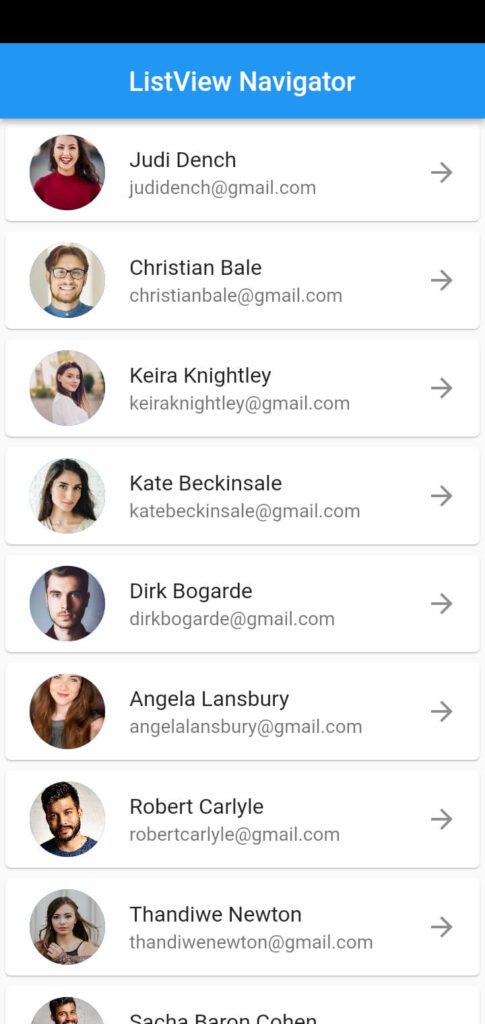

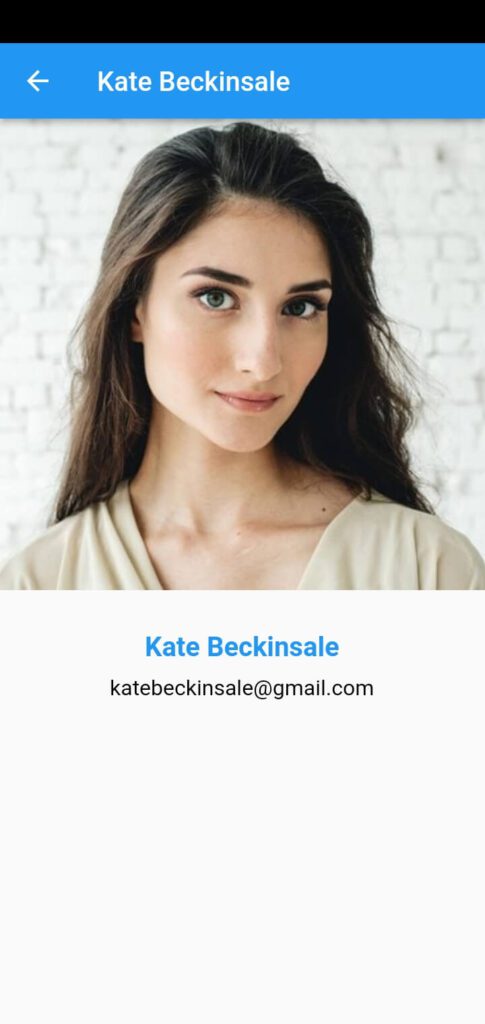
Conclusion
In this article, we create a ListView with Navigator with a static array list which is navigated to the user on another page with some data and shown in a manner way. we don’t need to implement any other third-party package on it. if you understand this logic then you create your own list view and a more attractive way to show data to users.
Thanks for reading this article ❤
If I got something wrong? Let me know in the comments. I would love to improve.
Clap 👏 If this article helps you.
If we got something wrong? Let me know in the comments. we would love to improve.